1. What is Surfe for monday.com App?
Surfe for monday.com is a monday.com marketplace app that brings verified People and Company enrichment data directly into the monday boards, so teams can complete lead and account data without switching tools. Update key fields like email, phone number, job title, company information, and more – right from your boards.
With Surfe for monday.com, sales teams can streamline prospecting and maintain accurate CRM records using a simple, native workflow.
Key benefits:
- Enrich contact and company records with trusted data without leaving monday.com
- Improve data quality across lead, deal, and account boards
- Reduce manual research and tab-hopping during outreach
- Keep CRM fields up to date with the latest available data
Use cases:
- SDRs preparing outreach lists directly in monday CRM
- Sales teams enriching inbound leads before qualification
- Account teams filling missing fields for handover or segmentation
Surfe helps teams work with complete and reliable data – right from where they already manage their pipeline.
App details:
- Requires LinkedIn URLs to enrich People data (emails, phones, etc.).
- Requires company domains to enrich Company data (revenue, headcount, etc.).
- Operates via board automations (for mapping) and a item select widget (for triggering the enrichment).
2. Configuring Surfe for monday.com
2.1. Adding the board automations
Once the app is installed, you must add the Surfe automation templates to the board where you wish to perform People or Company enrichment.
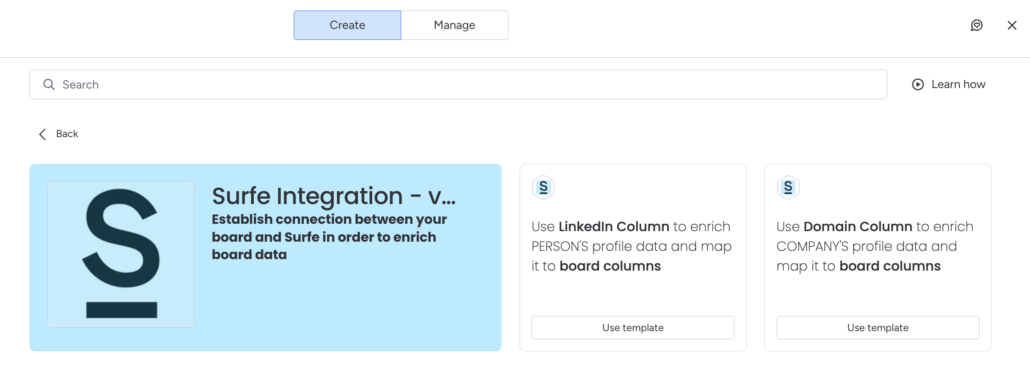
Click Automate at the top of the board, type “Surfe” in the search bar, and select the Surfe app. You will then see the available templates for enrichment:
2.2. Adding the Surfe API key for authorization
When a user adds an automation in the workspace for the first time, they will be requested to enter their Surfe API key.
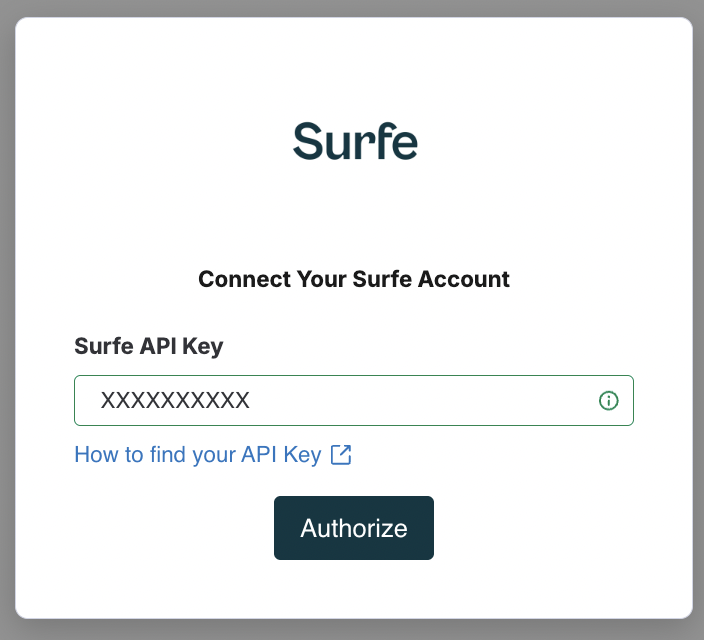
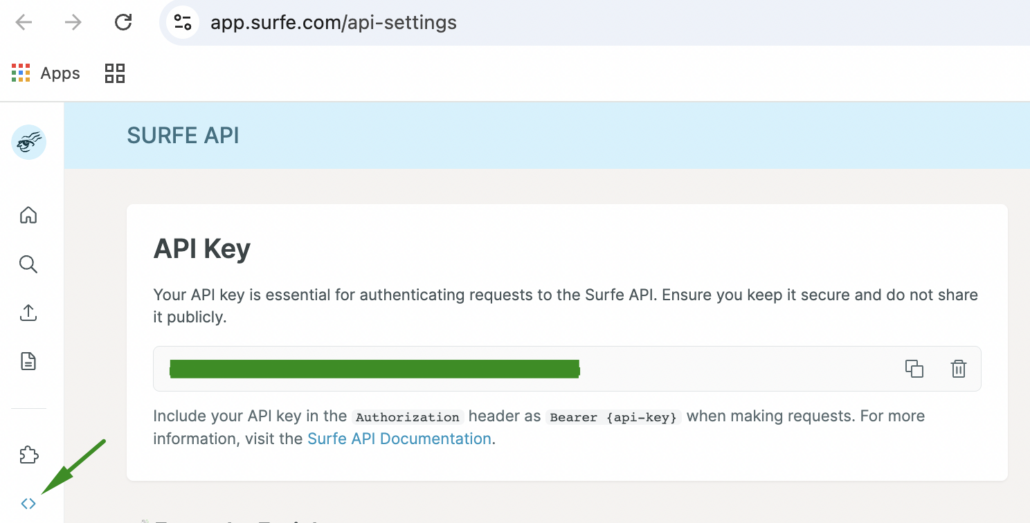
This link explains how to find your Surfe API key. If you are logged-in to Surfe, try accessing the API key via this direct link: https://app.surfe.com/api-settings
2.3. Configuring the automation for People enrichment
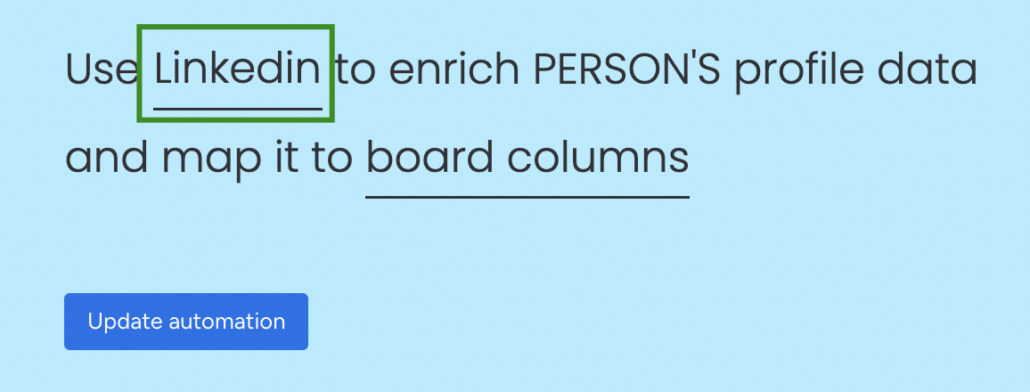
Select the automation labeled “Use LinkedIn Column to enrich PERSON’S profile data and map it to board columns” to begin configuration.
To enrich contact information, your board must have a column containing the LinkedIn profile URLs of the people you want to enrich. Select this column in the automation:
Next, clicking “board columns” in the automation allows you to configure the mapping of data coming from Surfe to your board columns:
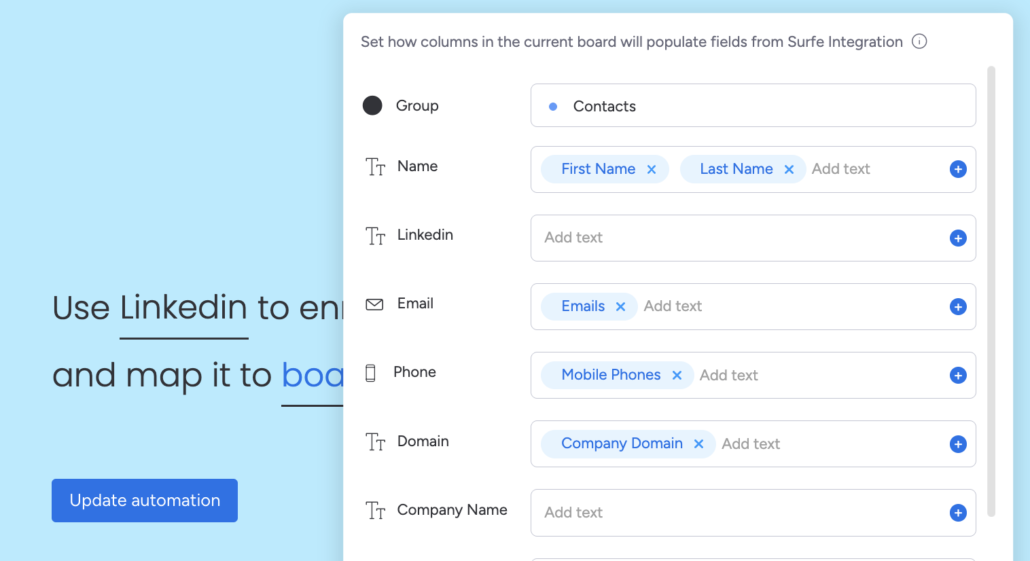
Since you already have the LinkedIn URL to perform the enrichment, you typically do not need to map this column back to the board. Surfe can enrich and return the following data points, so ensure your board has columns set up to accept the information you require:
- First name
- Last name
- Emails (select this to enrich most accurate email)
- Mobile phones (select this to enrich most accurate mobile phone) [IMPORTANT: Text column has to be used for the phone numbers]
- Country [IMPORTANT: Text column has to be used for country]
- Departments
- Company name
- Company domain [IMPORTANT: Text column has to be used for domain]
- Job title
- Linkedin URL
- Location
- Seniorities
Once the LinkedIn URL column is selected and the field mapping is complete, click Create automation. You are now ready to enrich contact data through Surfe!
2.4. Configuring the automation for Company enrichment
The Company enrichment automation is configured similarly to the People enrichment automation, but the required column (key) to start the enrichment is the company domain (e.g., apple.com).

The following data is available for mapping to board columns via the automation:
- Company name
- Description
- Employee count
- Founded
- Headquarters address
- Headquarters country
- Industry
- Linkedin URL [IMPORTANT: Text column has to be used for URL]
- Phone [IMPORTANT: Text column has to be used for phone]
- Revenue
- Sub industry
- Website URL [IMPORTANT: Text column has to be used for URL]
Once you have created the Company enrichment automation, added a board column containing the company domains, and set up the mapping, you are ready to perform company enrichment on this board!
3. Using the app
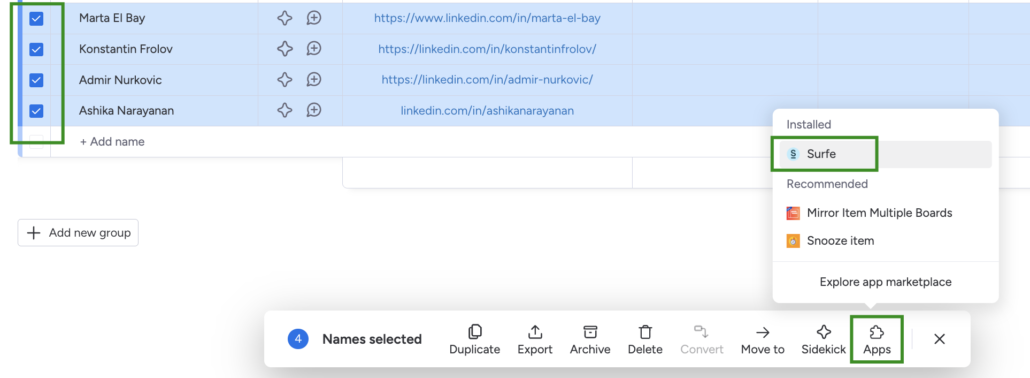
Select one or more items that you wish to enrich and launch the app widget from the bottom panel:
Now that the automations are configured, retrieving the required data takes just one click. The App widget allows you to enrich the mapped data for the selected people or companies:
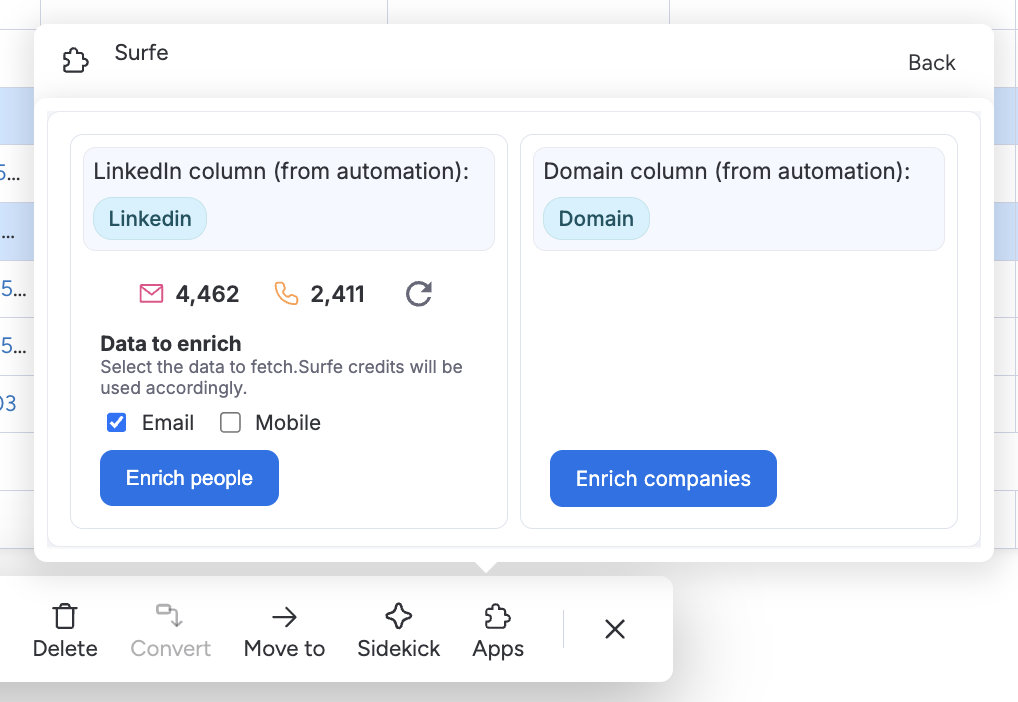
The left side of the widget manages People enrichment. It displays:
-
The LinkedIn profile URL column (configured in the automation).
-
The remaining Surfe email and phone credits for the Surfe API key.
-
Checkboxes to choose what data needs to be fetched: person’s email and/or mobile phone.
Note: Fetching emails or mobile numbers will consume the corresponding Surfe credits.
The right side of the widget manages Company enrichment. It displays the Domain column (configured in the automation) and a button to start the enrichment for selected items. Company enrichment does not consume Surfe credits.
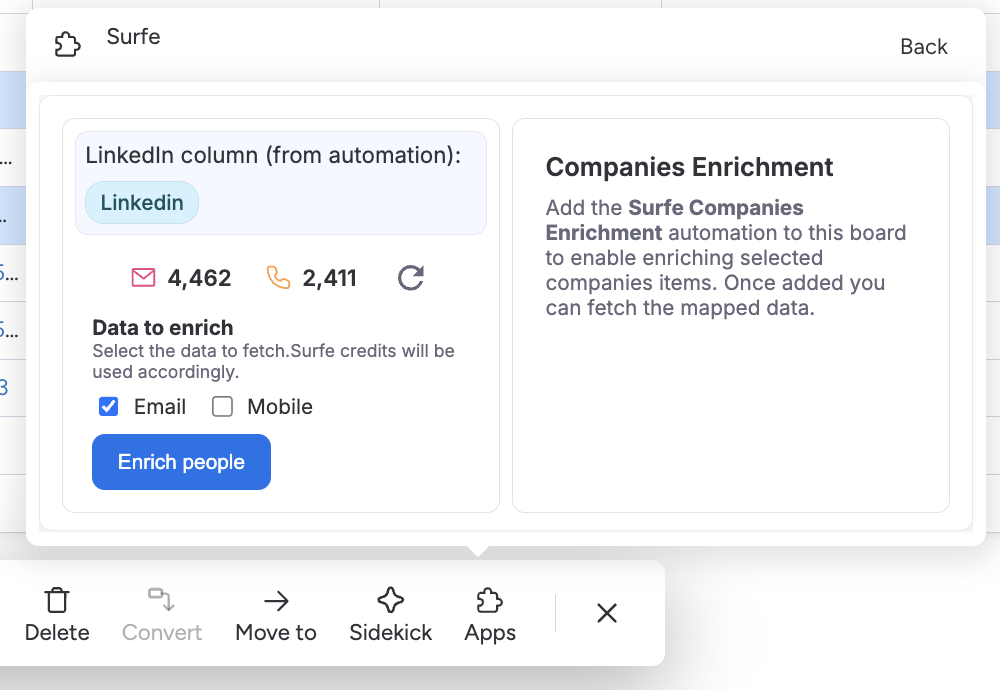
You can organize People enrichment on one board (e.g., your “Contacts” board) and Company enrichment on another (e.g., your “Accounts” board). In this case, simply add the relevant automation to each board. If you open the widget on a board with only one automation type, it will indicate that the other automation is not present, looking like this:
When you click “Enrich“, a pop-up appears confirming that the enrichment request has started with Surfe. Please note that waterfall enrichment is not instantaneous; the app will display the estimated time required to retrieve the results:
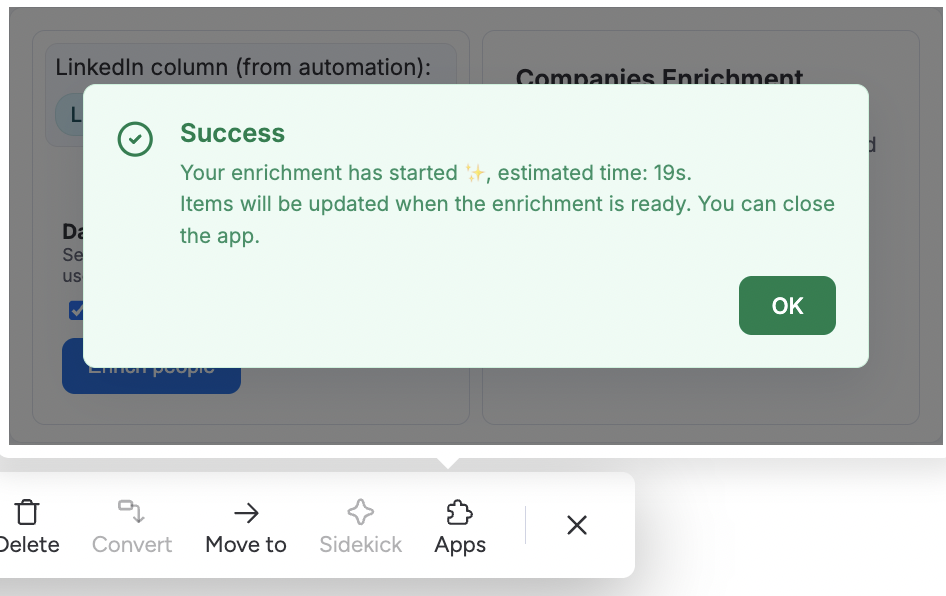
Once the process has started, you can close the app widget and even navigate away from the board; the results will be added automatically as soon as Surfe finds them.
Please note that enrichment results are not 100% guaranteed, and some fields may remain empty. You can try restarting the enrichment for these items if needed.
4. FAQ
I have automations and mapping configured, enrichment starts, but the items do not get updated.
Please check the format of the columns that you are using for mapping phones and URLs. If they are Monday’s Phone and URL types, this could be causing the issue. Consider changing these column types to Text.
I had enrichment successfully working, but at some point it stopped updating the items.
Most probably some of the columns that are used in the mapping (in the automation) have been removed from your board. Consider opening an automation, and resaving the fields mapping and the automation itself.
Can we enrich People and Company data on the same board?
Absolutely. You simply need to add both automations to the board. Ensure your board has:
-
A column with LinkedIn profile URLs (for People enrichment).
-
A column with Company domains (for Company enrichment).
Important: Check that the column mappings in the two automations do not overlap. For example, ensure People enrichment doesn’t map a person’s name to the “Item Name” column if Company enrichment is also set to map the Company Name to that same column, as this would cause an overwrite.
Hint: Since the company domain can be obtained during People enrichment, we recommend running People enrichment first. You can then use the newly enriched company domain column to trigger the Company enrichment.
Can the app be used on multiple boards?
Yes. You can use the app on as many boards as you wish. You can configure People enrichment on one board, Company enrichment on another, or both on the same board.
Can different API keys be used for enrichment on different boards?
Yes. If you want enrichment on different boards to consume credits from different accounts (via different API keys), a different monday.com user must add the automation to the new board.
When a user adds an app automation for the first time and authorizes the app with their API key, that key is tied to them for all future automations they create. Therefore, to use a different API key, a different monday.com user must be the one to add the automation.
Can different API keys be used for enrichment on the same board?
No. Only one automation of a certain type (People or Company) can be active on a board. Once a user has added and authorized an automation, another user cannot add a second automation of the same type to the board using their own API key.
Are there format requirements for LinkedIn URLs and Company domains?
LinkedIn URLs are accepted in various formats, for example:
linkedin.com/in/username
linkedin.com/in/username/
www.linkedin.com/in/username
https://www.linkedin.com/in/username
Company domains are accepted in formats like:
fjallraven.com
www.fjallraven.com
Can I add information to Item Updates?
Yes. You can choose to add specific enriched information (e.g., Company Description) as an Item Update (the conversation bubble) instead of mapping it to a specific column. This option is available in the mapping settings within the automation configuration.
Does the app store or process any data?
No. The app does not process or store any data sent for enrichment or the enriched results. Your monday.com and Surfe accounts communicate directly. Your authentication data is stored securely in monday Storage and is removed from your monday account within 10 days of uninstalling the app.
5. Contacts
If you have any questions, issues, suggestions, or feature requests, feel free to reach out to us at: apps@cloudstride.io.